
Core Modules and Workflow User Guide
Introduction
DecipherRisk™️ is an Integrated Risk Management platform that gives hospital ERM, Cyber Security, Internal Audit, and Compliance teams a single place to document, manage and report on risk. Its modular design provides a variety of capabilities, but the system’s nucleus is built around a Core Workflow that supports the end-to-end management of the various types of risk hospitals encounter.
This document is a user guide for the Core Workflow and associated modules (Core Modules). It is designed for new users and provides tips on how to get the best results from the platform.
The Issue Record
Issue records (Issues) are foundational elements of DecipherRisk's™'s️ Core Workflow. They give Risk, Cyber Security, Audit, and Compliance teams a place to record, analyze and report any observations and concerns that could negatively impact their organization, its patients, employees, or other stakeholders. These concerns often materialize as findings from annual audits, HIPAA risk assessments, etc. They can be a compliance deficiency, an emerging threat, a missing or ineffective control, an operational performance metric variance, or any other concern from business operations or plans that may require attention.
[In DecipherRisk, risk issues are entered in the Issue Register located in the ISSUES MODULE]
What is the difference between a Risk Issue and a Risk Scenario?
Risk Scenarios are statements used to 1) help decision-makers understand how adverse events can affect organizational strategy and objectives and 2) setup risk analysis by clearly defining and decomposing the factors contributing to the frequency and the magnitude of adverse events (How to Write Strong Risk Scenarios and Statements - ISACA 2021).
Well-defined risk scenario statements can be phrased as a question (e.g., What is the risk associated with...) and should contain three key elements: 1) a clearly defined asset, 2) a clearly defined threat (agent/community), and 3) a clearly defined loss event (effect).
[In DecipherRisk, risk scenarios are entered in the Risk Register located in the RISK MODULE]
In contrast to a risk scenario, risk issues do not need all three components, but they should be as specific and clearly defined as possible.
Example (Fire Extinguisher Analogy)
During a fire inspection, the fire marshal identifies that a fire extinguisher is not operational.
This would be an example of a Risk Issue (non-operational fire extinguishers). There is not enough information provided with this Issue to be analyzed and modeled to estimate risk.
In contrast, a Risk Scenario for this issue might be “the risk of business operations being disrupted (loss event) due to fire (threat) at the packaging facility (asset).
Core Modules
The Core Workflow utilizes four Core Modules (Issues, Action Plans, Risk, and Dashboard), included in every DecipherRisk™️ implementation.
Issues Module
The Issues module is a register of risk Issues entered into the system. It is the starting place for the Core Workflow related to risk management. It is where Enterprise Risk Management (ERM), Cyber Security, Internal Audit, and Compliance teams document and manage the wide variety of risk issues that come from audits, assessments, penetration testing and other ad-hoc risk identification activities.
Action Plans Module
The Action Plans module is a register of Action Plans created by a user in the system. It provides risk management teams a place to document the activities that the organization will carry out to analyze, and/or treat Issues.
Risk Module
The Risk module is a register of risk scenarios a user creates in the system. It provides quantitative risk analysis using Open FAIR™️. It also allows for the aggregation of risk scenarios into Portfolios and allows comparative analysis of up to three scenarios or portfolios.
Dashboard Module
The Dashboard module provides individuals and teams an overview of the status of Issues, Risk Scenarios, and Action Plans they are responsible for.
Core Workflow
There are five primary processes involved in the DecipherRisk™️ Core Workflow:
- Discover - identify the issue.
- Intake - document the issue.
- Triage - prioritize the issue.
- Act - take action on an issue (analyze, evaluate, plan, and execute).
- Monitor - review and report on issue status (and process performance).

Discover Process
Modules Used: Audits and Assessments
The first step of the workflow is to identify risk issues. This can occur internal to DecipherRisk™️ (e.g., using the Audit or Assessment modules) or external to DecipherRisk™️ (e.g., 3rd party audits or security assessments). Issues identified during the Discovery Process are collected from internal and external sources and recorded in the system during the next step, the Intake Process.
Intake Process
Modules Used: Issues
Documenting risk issues is the first step in the workflow and ensures potentially critical issues get proper attention, can be reported on, and do not "slip through the cracks." Documentation of issues is completed during the Intake process. Risk issues from audits and assessment findings or other reporting tools, such as KPIs (Key Performance Indicators), are entered into the system during this process.
Step 1: Create Issue - To create an issue, navigate to the Issue module and select “Create Issue”.
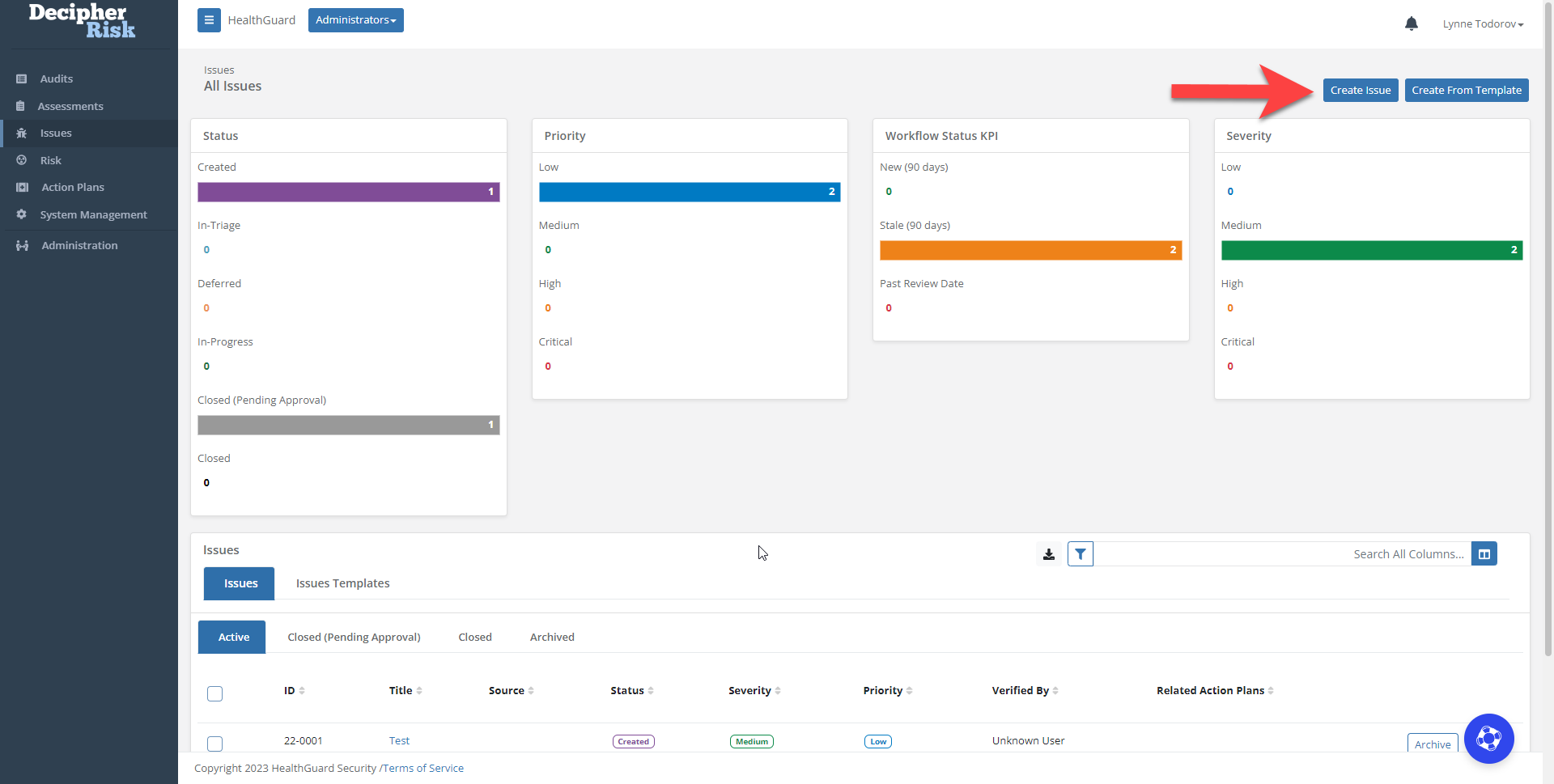
Figure 2 - New Issue creation.
Step 2: Complete Intake Fields - Populate the six Intake fields in the modal window, then click Submit.
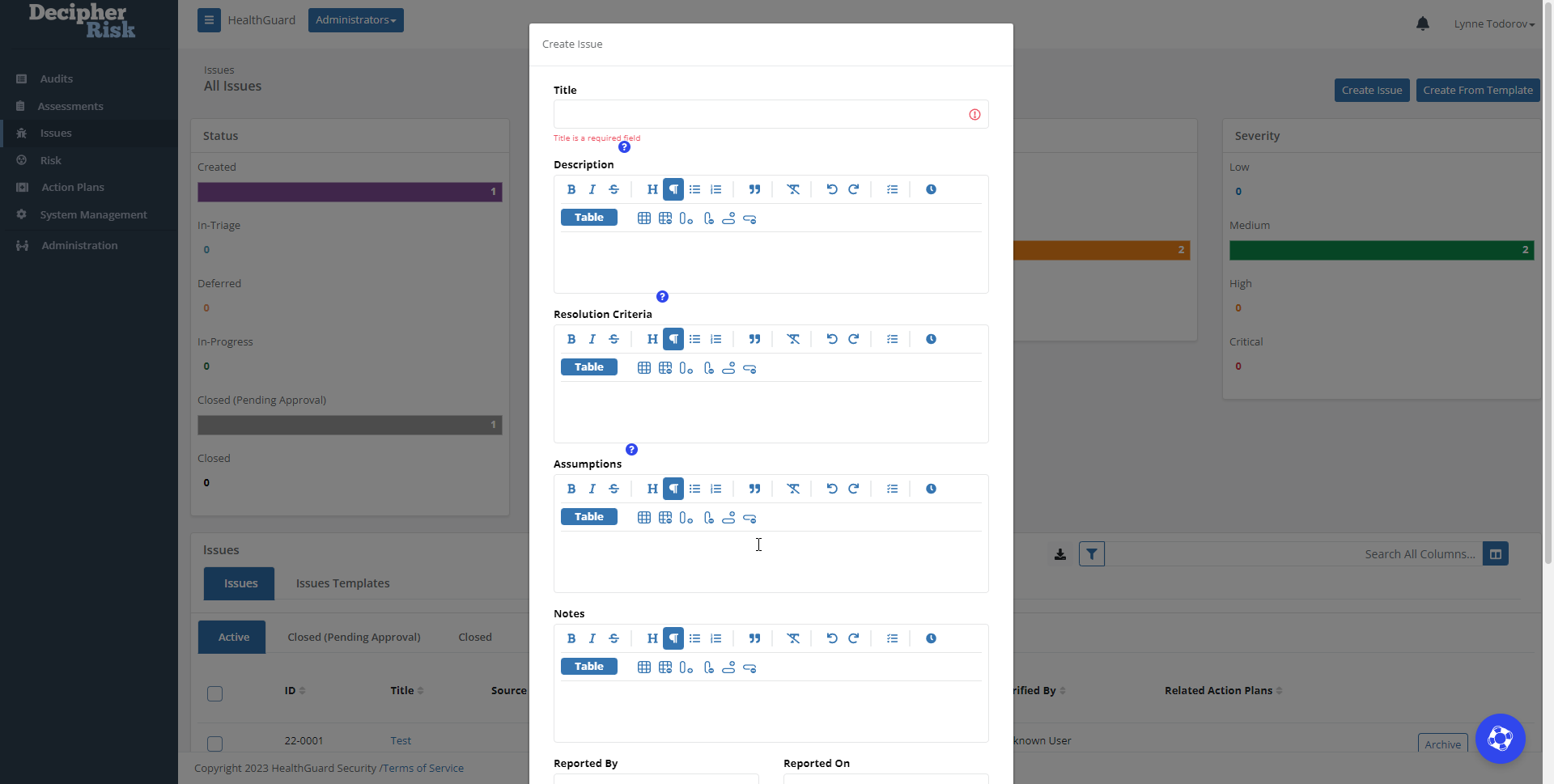
Figure 3 - Issue creation modal window
Intake Fields
Six fields will be completed during the Intake process.
- Title - Provide a brief title
- Description - Provide a detailed description of the issue
- Reported By - who (individual, group, or organization) reported the issue
- Reported On - when was it reported
- Source - what was the source (e.g., 2022 Internal Audit, 2019 Penetration Test)
- Owner - who is the person that is responsible for the issue.
Tip: The title should be a short description, ideally less than 40 characters, that describes the issue. The Description field is for a more detailed explanation of the issue (think hashtag vs. post).
Tip: When entering an issue during the Intake process, the primary goal is to document it in the system. More information about the issue that is included in the Description field at this time will help during the Triage process.
Tip: Use the Five Why's technique to define/refine the issue description.
Tip: Organizations should establish a Risk Issue Workflow Policy that includes when the Triage process should begin for new issues entered into the system (e.g., Triage will begin within ten business days of being entered in the system). This policy can then be used to set an initial Review Date in the issue Attributes section.
Intake Process Checklist:
- ISSUE STATUS set to CREATED (default)
- Complete Intake fields (bare minimum information needed for an issue)
Triage Process
Modules Used: Issues
After the Intake Process is complete and the issue is documented in DecipherRisk™️, the next step is to Triage the issue. The purpose of the triage process is to conduct a cursory analysis of the issue to assign a Priority that is used for subsequent decision-making.
The Triage process uses six fields:
- Severity - A cursory qualitative assessment of the potential risk associated with the issue.
- Priority - Prioritization of the issue based on its importance relative to other issues.
- Requires Risk Analysis - Used to indicate if additional Risk Analysis is required
- Requires Action Plan - Used to indicate if an Action Plan(s) should be developed
- Assumptions - Used to document assumptions related to the nature of the issue, including the assumptions made when assigning issue SEVERITY, PRIORITY, and determination if RISK ANALYSIS or ACTION PLANs are required.
- Notes - Used to document notes related to the issue and analysis performed.
Tip: In addition to the Notes field, there is a Comments field in the Issue record Activity Feeds. Comments can be used to add information not included in reports generated by the system.
Step 1: Open the Issue - To begin the Triage process, go to the Issues Module and select an Issue from the register.
Tip: You can customize the displayed columns, search, sort, and filter on any of the registers in the system.
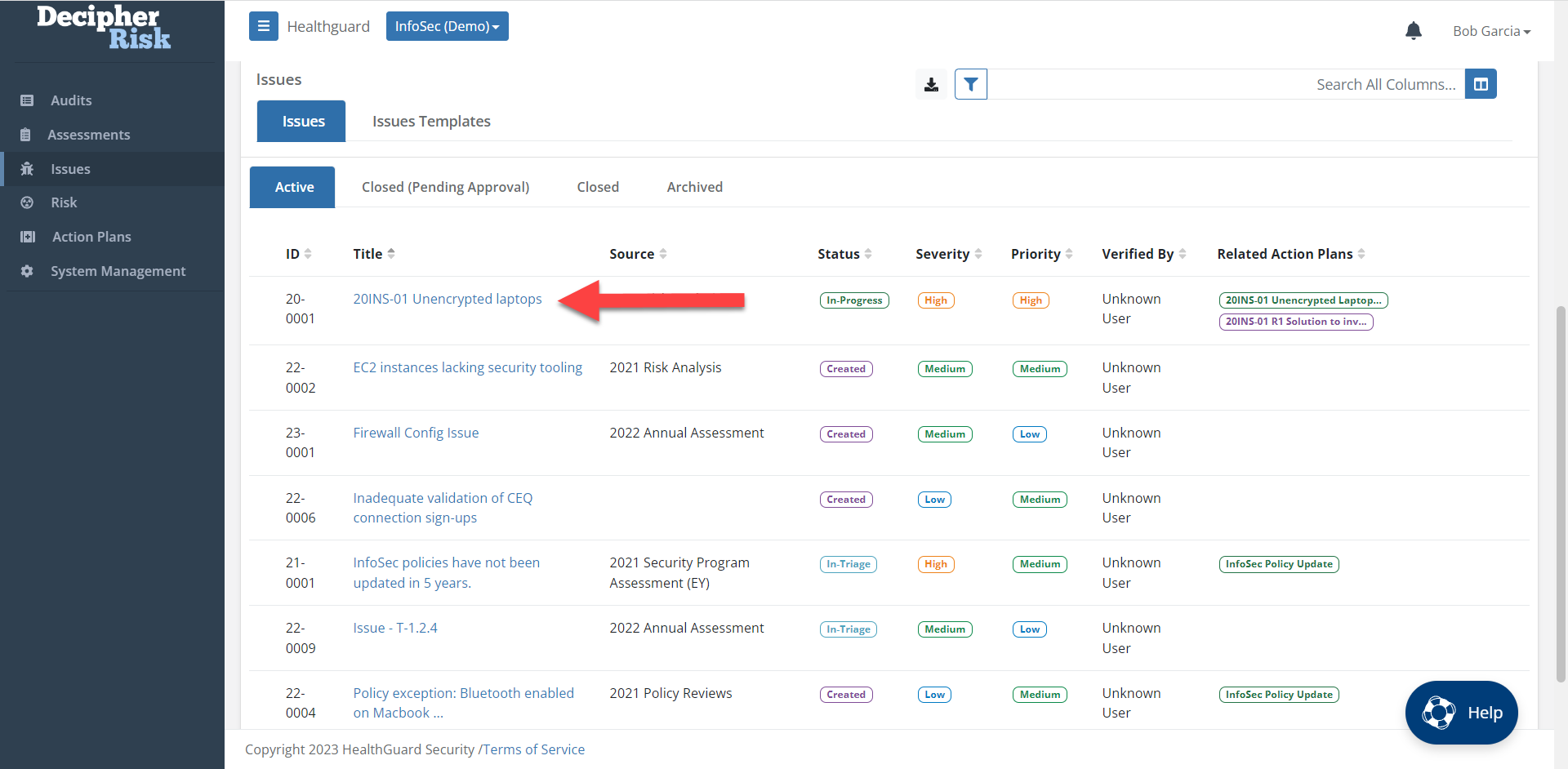
Figure 4 - Select the record from the Issue register.
Step 2: Set Status - Set the Issue status to IN-TRIAGE by editing the Issue status, then selecting IN-TRIAGE, and then saving.
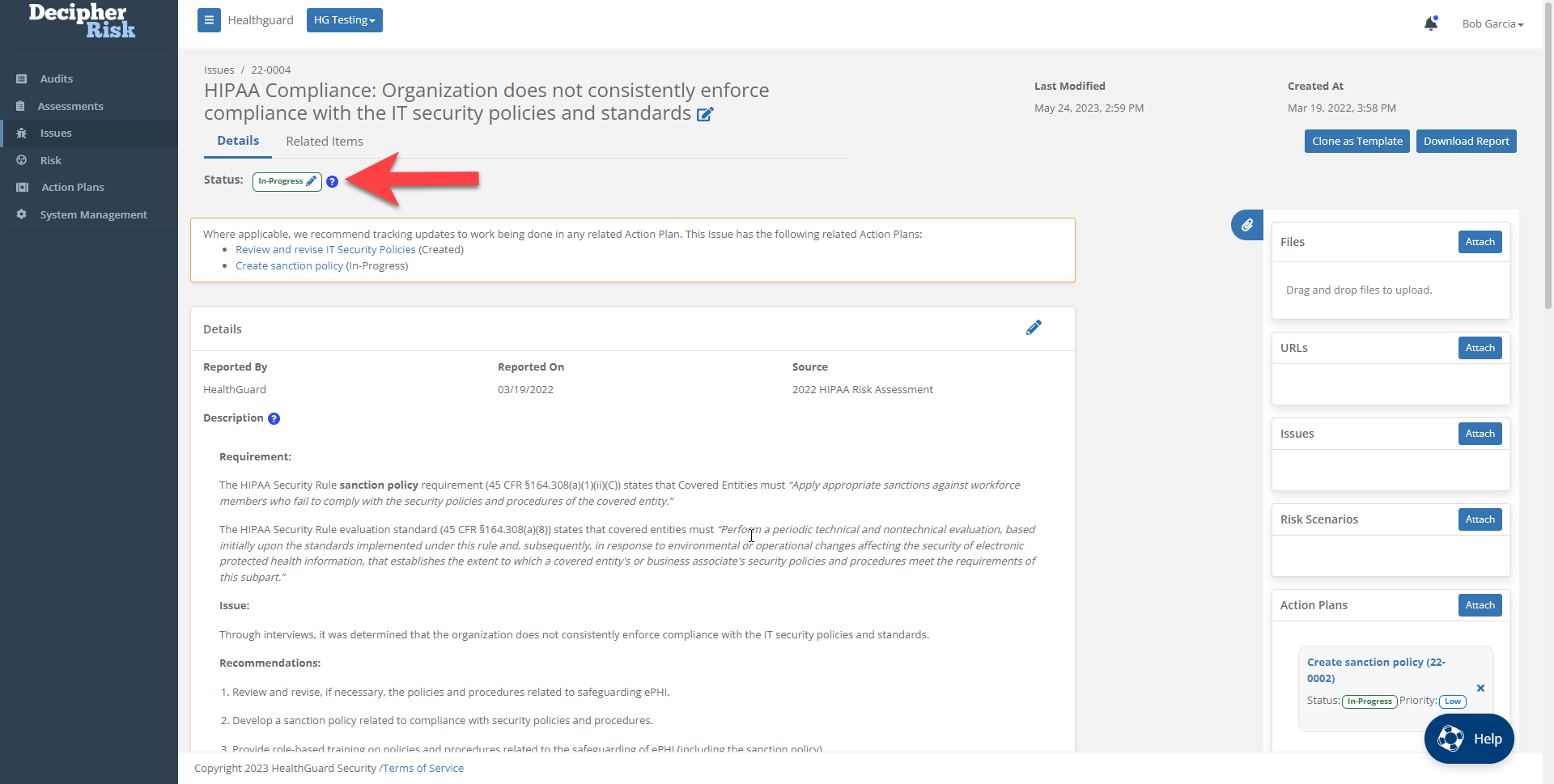
Figure 5 - Edit Issue Status
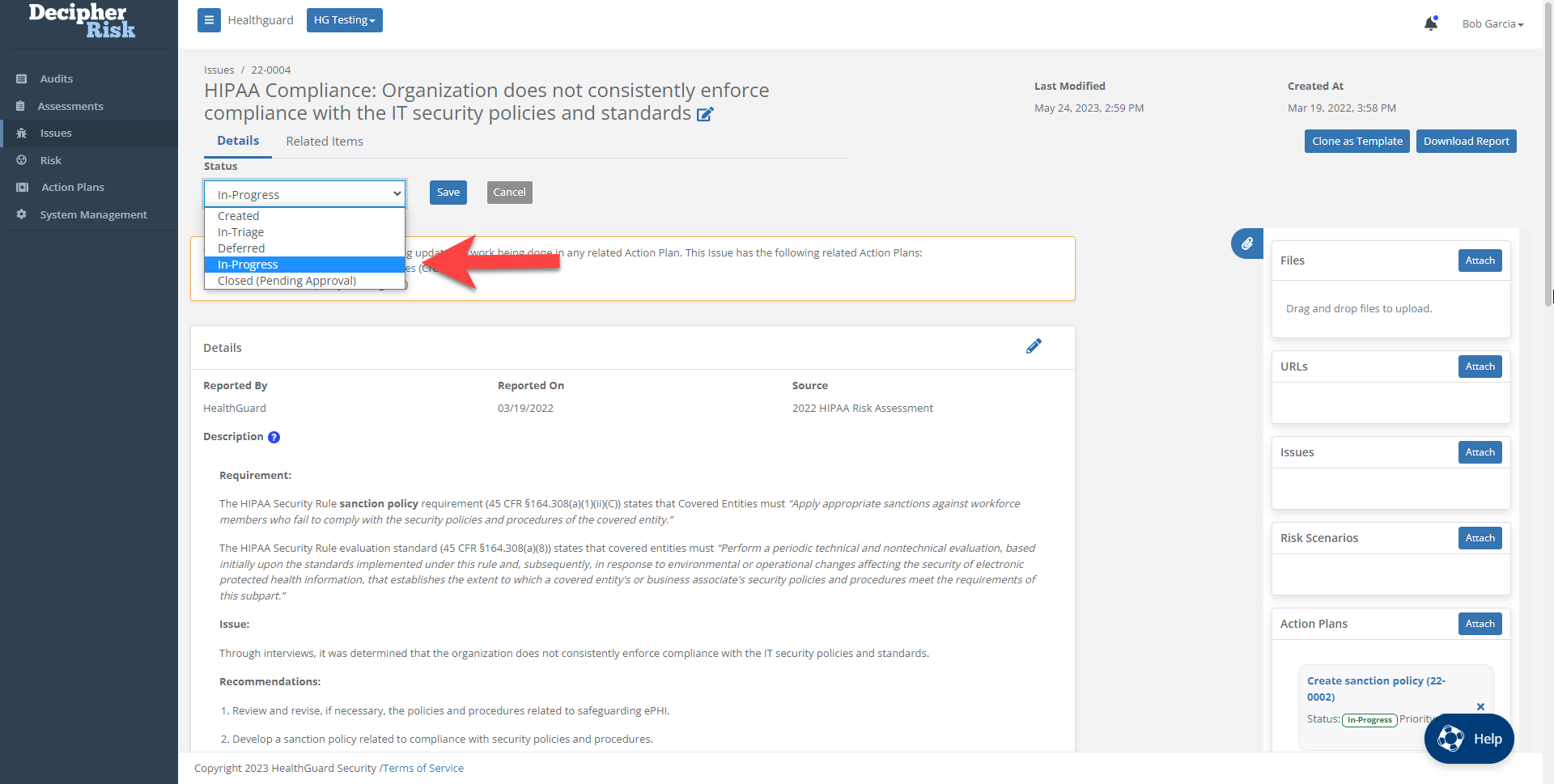
Figure 6 - Issue Status Options
Severity and Priority
The next step in the Triage process is to assign Severity and Priority to the Issue.
Step 3: Edit Attributes - Enter edit mode for the Attributes section with the Issue record open.
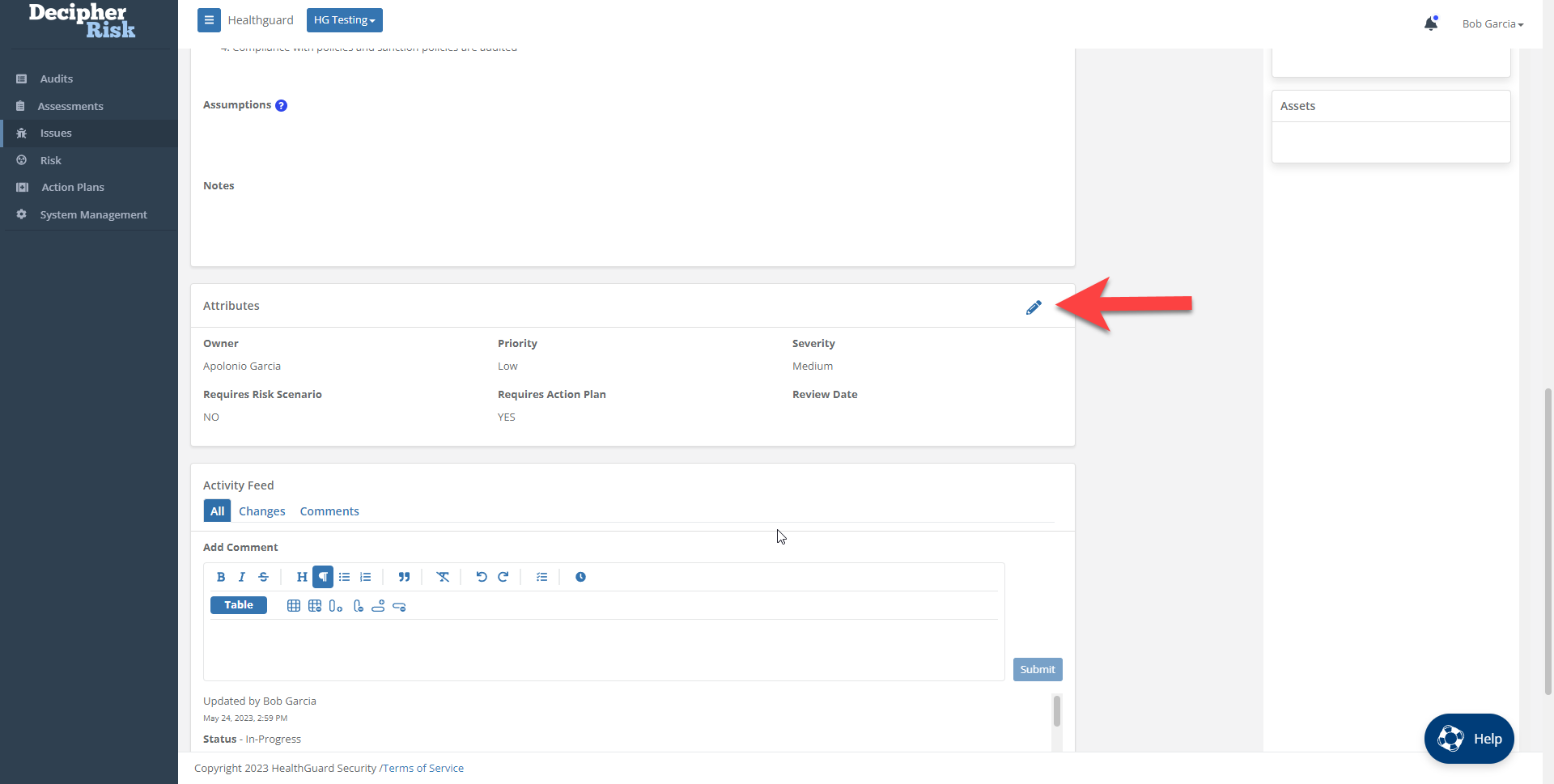
Figure 7 - Edit the issue Attributes to assign severity and priority.
Issue Severity
Issue Severity is used to communicate the urgency and establish the timing of the subsequent actions. It is based on the analyst's estimation of the potential impact and urgency of the issue. DecipherRisk provides four severity levels.
- Critical - there is potentially a significant impact that can occur in the next 12 - 24 months.
- High - there is potentially a significant impact, but we do not believe it will occur in the next 12 - 24 months.
- Medium - there is a limited impact that can occur in the next 12 - 24 months.
- Low - there is a limited impact, but we do not believe it will occur in the next 12 - 24 months.
Severity Rubric
Issue Severity can be determined by using the Severity Rubric Wizard in the application based on the questions below:
Answer the following questions YES/NO/UNSURE:
- Impact: Is there reason to believe this issue could lead to significant human harm or financial loss?
- Impact: Is there reason to believe this issue could significantly impact operations or affect our ability to execute our mission or achieve business objectives?
- Impact: Is there reason to believe this issue can impact our accreditation or compliance with federal/state laws?
- Urgency: Is there reason to believe this issue could result in significant loss/harm in the next 12 - 24 months?
Based on the answers to the questions above.
- If the answer to ANY Impact question (1, 2, 3) is YES or UNSURE and question 4 is YES or UNSURE, set the Severity to Critical.
- If the answer to ANY Impact question (1, 2, 3) is YES or UNSURE and question 4 is NO, set the Severity to High.
- If the answer to ALL Impact questions (1, 2, 3) is NO and question 4 is YES or UNSURE, set the Severity to Medium.
- If the answer to ALL Impact questions (1, 2, 3) is NO and question 4 is NO, set the Severity to Low.
Tip: The answers to these questions should be captured in the issue Assumptions field as the rationale for the Severity Level choice.
Step 4: Assign Severity - Assign the severity based on the results of the Severity Rubric.
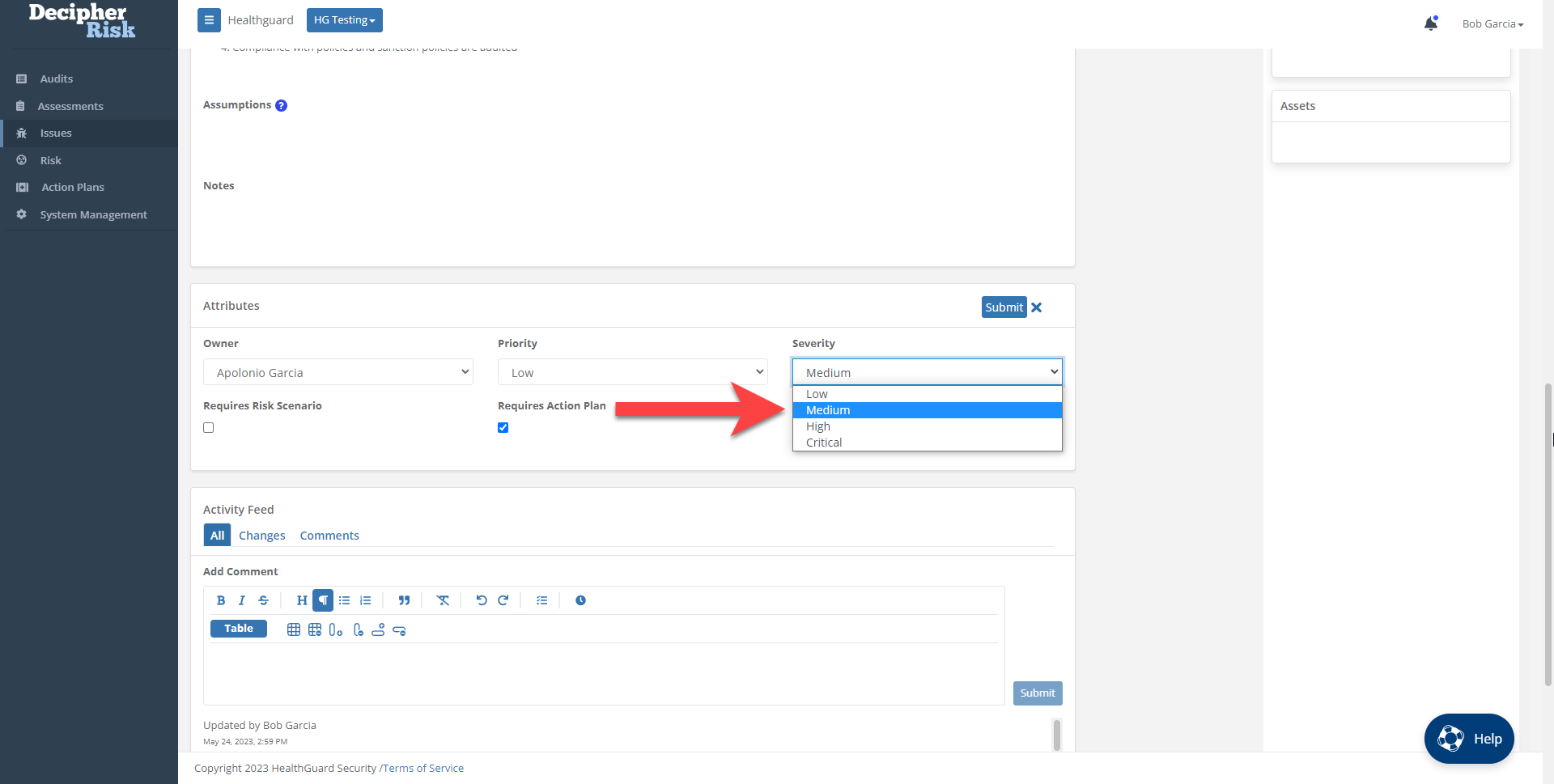
Figure 8 - Assign issue Severity
Issue Priority
Issue Priority prioritizes the issue relative to all other issues based on the severity, and any other factors management is concerned with.
Note: Issue Priority is used to determine the timing of the next steps.
Step 5: Assign Priority - Click on Submit.
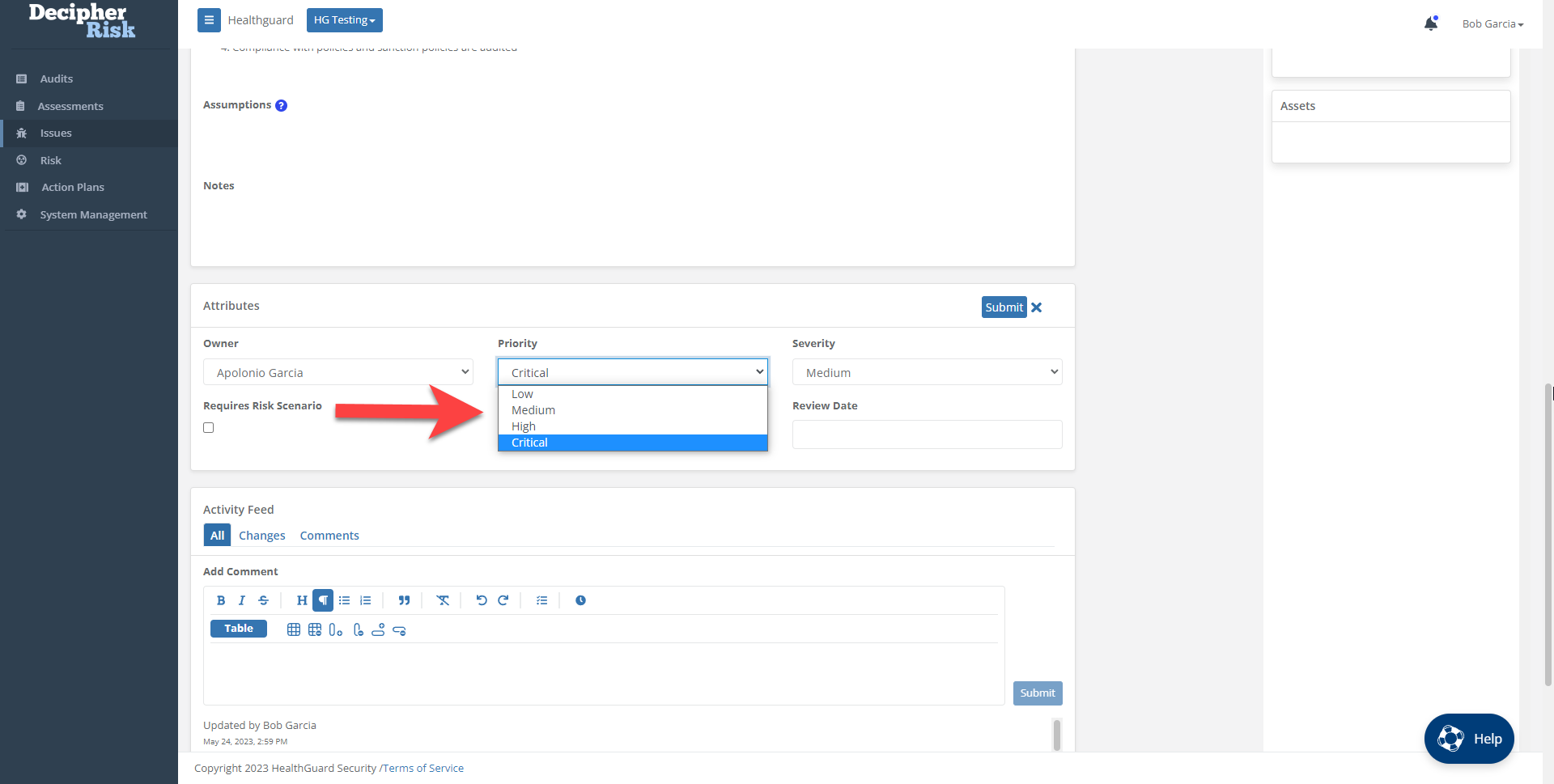
Figure 9 - Assign Issue Priority
Tip: For issues that have a status of In Progress, the Next Review Date should be set to the Due Date of the Action Plan or Risk Analysis, respectively.
Assumptions and Notes
Step 6: Enter Assumptions and Notes - Enter into edit mode for the Issue record Details section and document any key assumptions and add relevant notes. Click Submit when done.
Tip: Use the rich text capabilities in the Assumptions and Notes fields to format your information to make it easier to read. This includes using headers, boulders, tables, and lists.
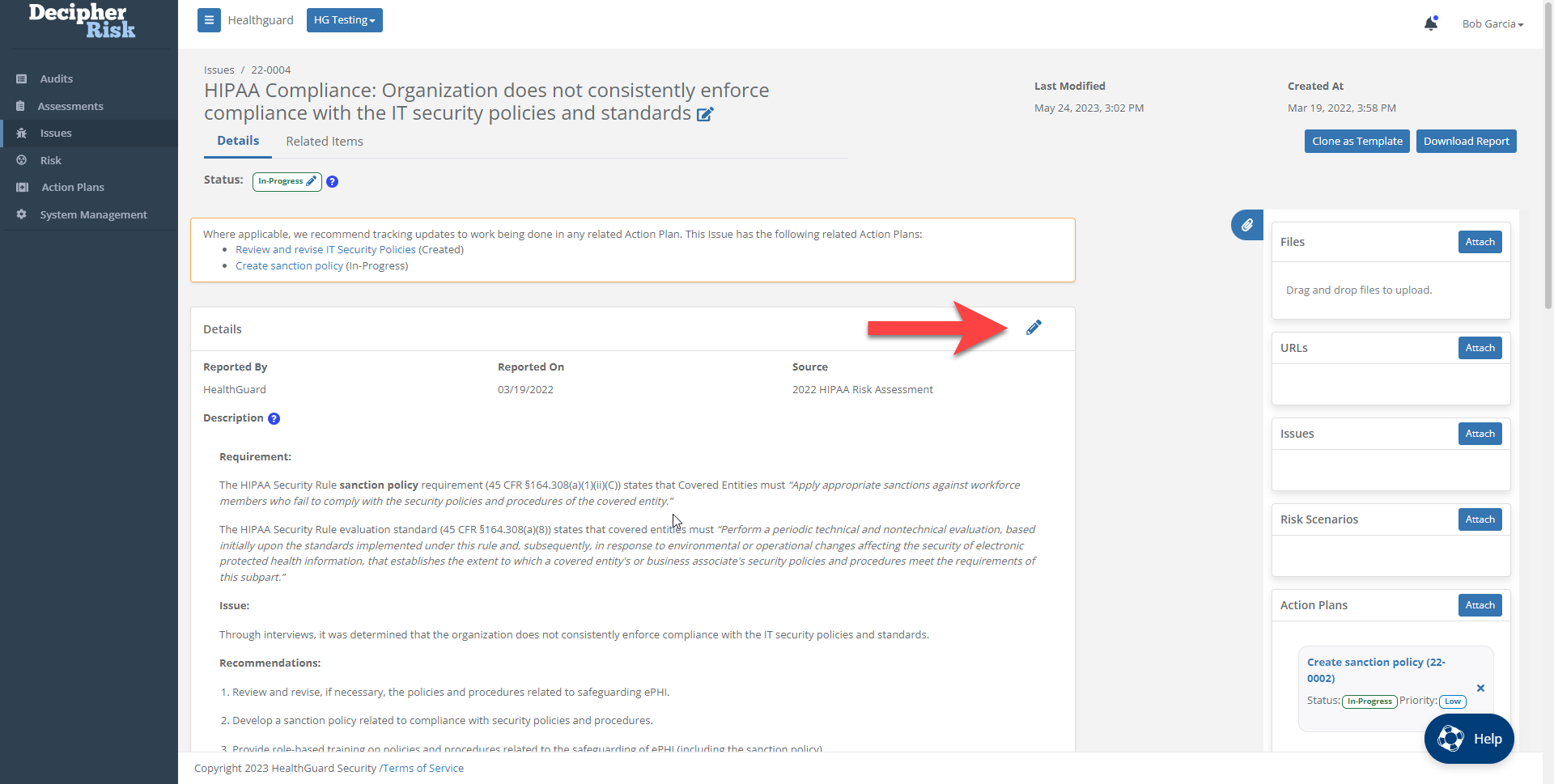
Figure 10 - Enter into edit mode for the Issue record Details section.
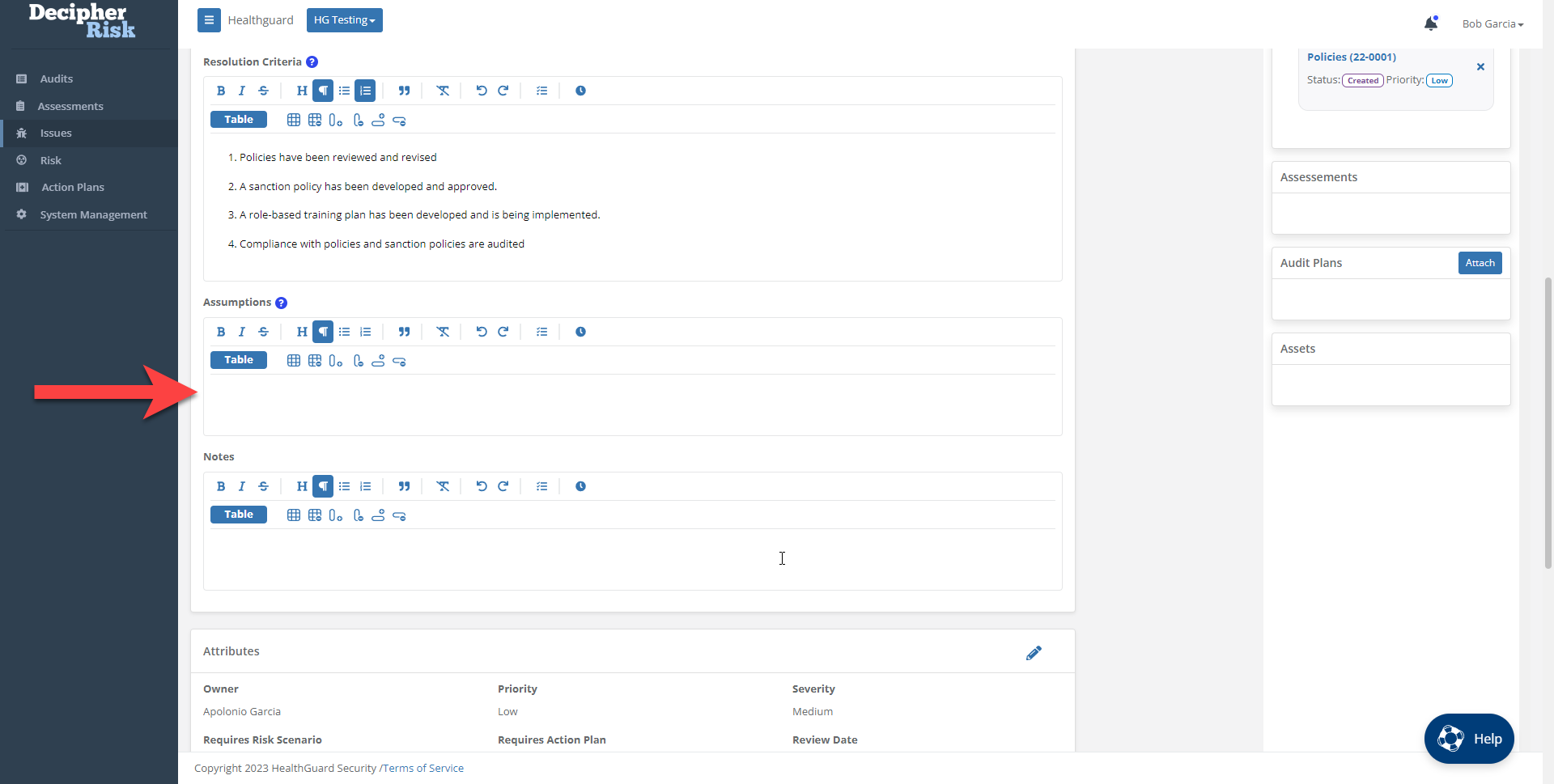
Figure 11 - Enter assumptions in the Details section.
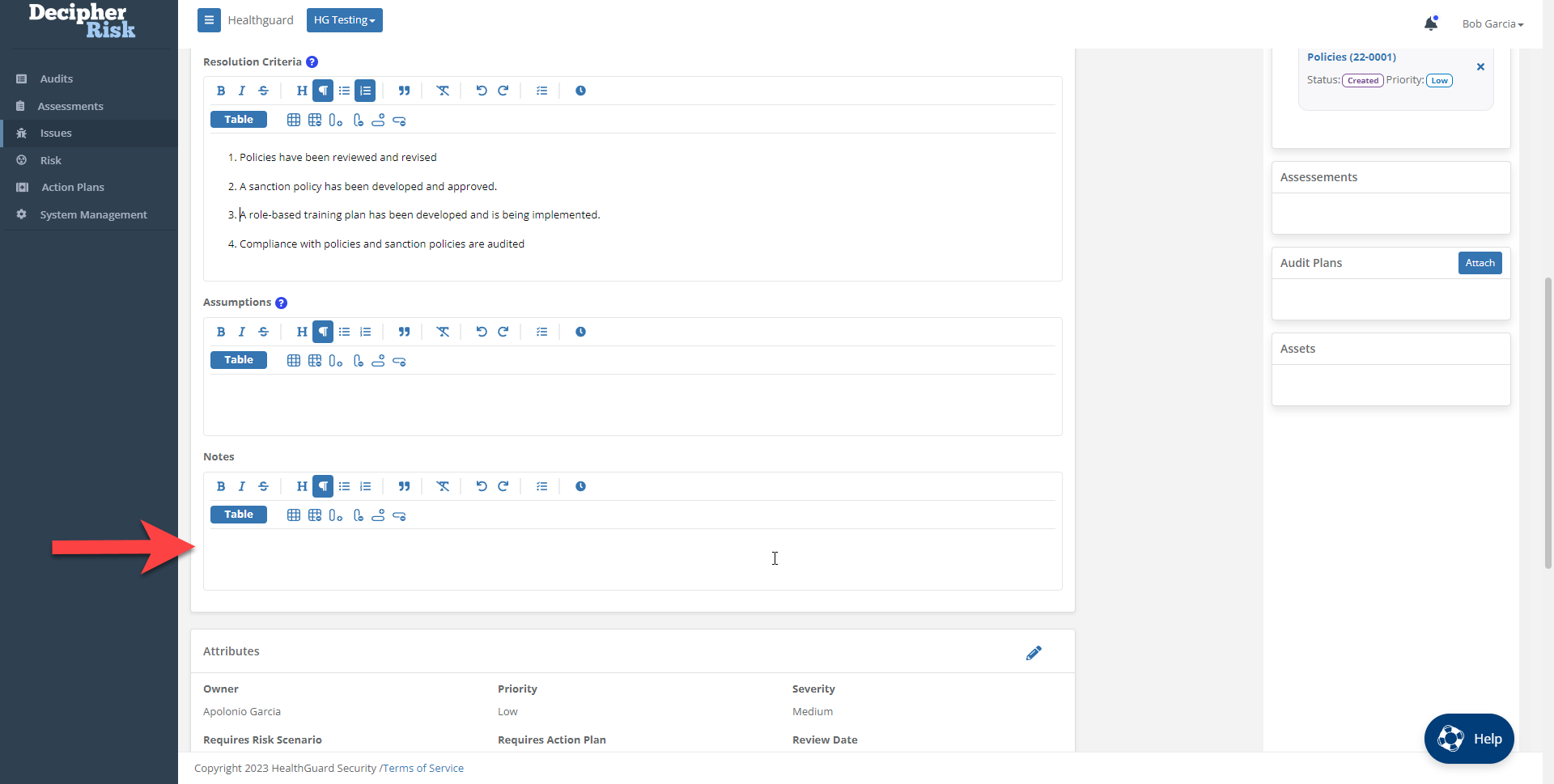
Figure 12 - Enter notes in the Details section.
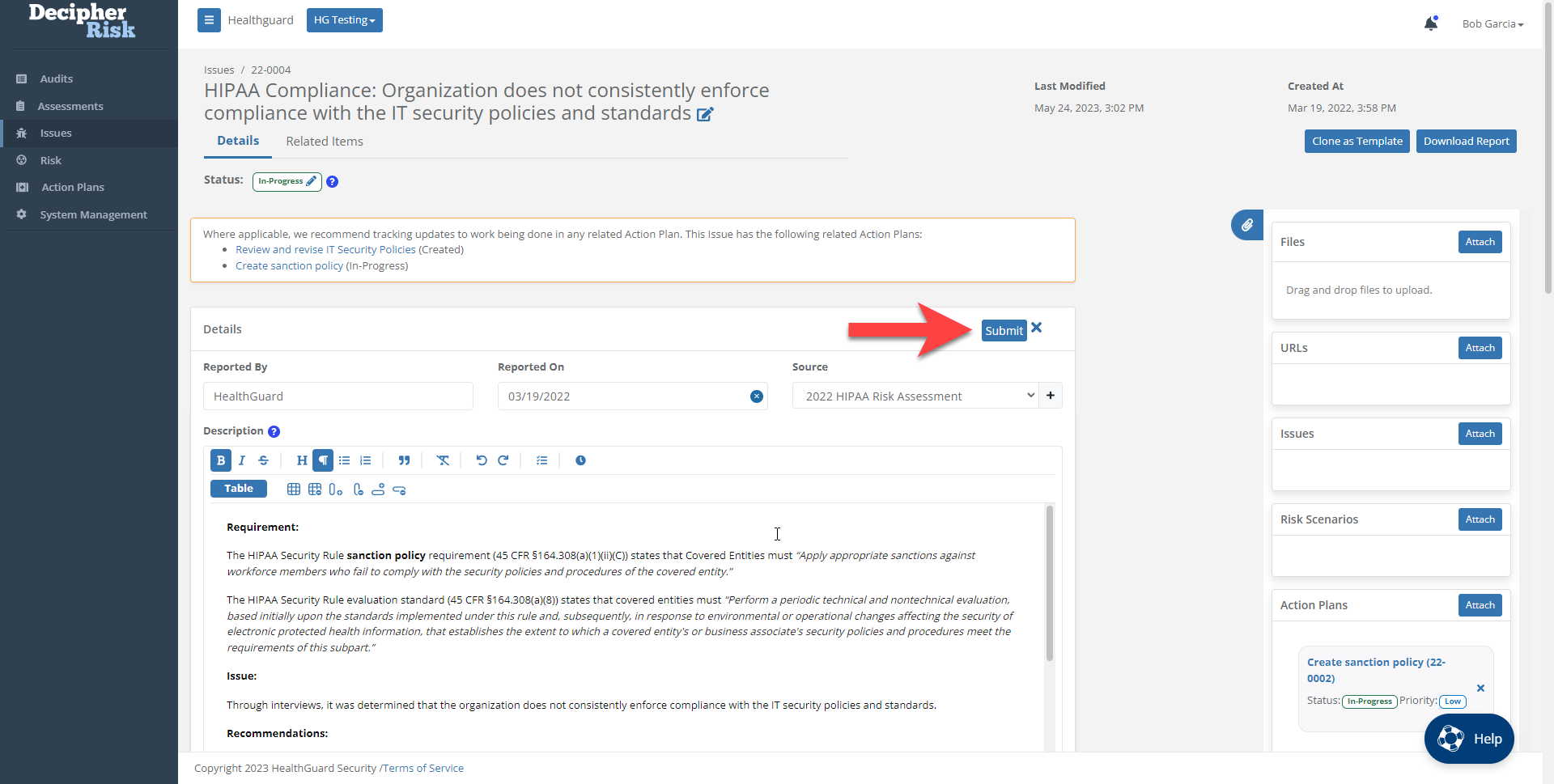
Figure 13 - Submit the assumptions and notes updates.
Upon completion of the Triage Process, if it is determined that the issue will not have a negative impact, the issue can be closed.
Triage Process Checklist:
- ISSUE STATUS set to IN-TRIAGE
- Assign SEVERITY
- Assign PRIORITY
- Document ASSUMPTIONS and rationale for Severity and Priority assignment
- Determine if Risk Analysis is required
- Determine if Action Plan is required
- Enter NOTES
- Reassign to OWNER (if necessary)
- If the issue will not negatively impact the organization or the risk is negligible and is being accepted, set the ISSUE STATUS to CLOSED and document the assumptions/rationale in the ASSUMPTIONS field.
Act Process
Modules Used: Issues, Action Plans, and Risk
After the Triage process is complete, the next step is to decide on what action to take based on the issue Priority assigned. The diagram below shows a decision tree for the Act process. From left to right, it starts with findings from audits and assessments entering into the Workflow via the Intake process, then going through the Triage process where priority is set, then a series of decisions that guide actions based on the assigned priority.

Figure 14 - Act Process Decision Tree
Next Steps by Priority Level
The Priority Level should determine if the issue requires immediate action (e.g., risk analysis or development of an action plan) or will be deferred to a future date. Additionally, if it is determined that the issue will not have a material negative impact, it can be closed.
Actions for Critical and High-Priority Issues
- Critical-priority issues - A risk analysis and/or action plan should be started within ten business days.
- High-priority issues - A risk analysis and/or action plan should be started within 30 business days.
Actions for Medium and Low-Priority Issues
- Medium-priority issues - if no critical and high-priority issues are more pressing, or if the effort/resources required to address a medium-priority issue are negligible, then an action plan and/or risk analysis may be completed. Otherwise, medium-priority issues will be deferred until the Next Review date set in the issue.
- Low-priority issues - will be deferred until the Next Review date set for the issue.
Act Process Tasks
The Action process involves one or more of the following tasks:
- Establish Resolution Criteria
- Develop Action Plan(s) with Tasks
- Conduct Risk Analysis
- Defer Issues and/or Action Plans
- Review Deferred Issues (as necessary)
Establish Resolution Criteria
Resolution Criteria define the conditions that must be met to consider the issue resolved (i.e., closed). All high and critical priority issues should have defined Resolution Criteria that specify the condition(s) that must be met to close the issue.
Tip: Resolution Criteria can be defined at any process stage, but should be developed before developing Action Plans.
Develop Action Plan with Tasks
Action Plans are used to document, assign and monitor the work to be done to analyze and address risk issues. The REQUIRES ACTION PLAN field (checkbox) indicates when an action plan should be developed. Tasks are used to document and assign the work to be done to complete the Action Plan(s).
Action Plans Types
Several types of Action Plans can be created for an Issue:
- Triage - analysis required to define the issue properly and set priority
- Risk analysis
- Risk treatment - execution of risk treatment strategy (transfer, mitigate, avoid, and accept)
- Audits
Conduct Risk Analysis
Risk Analysis is used to analyze and estimate the risk associated with a risk issue. DecipherRisk™️ uses Open FAIR™️ scenario-based risk analysis to develop quantitative estimates of risk. The REQUIRES RISK ANALYSIS field (checkbox) indicates when a risk analysis should be performed.
Defer Issues or Action Plans
When the organization has Critical or High Issues, less pressing Issues or Action Plans (i.e., Low and Medium priority) can be deferred to a future date.
Tip: Organizations should establish a Risk Issue Workflow Policy that defines the standard deferment periods based on issue SEVERITY used to set NEXT REVIEW dates (e.g., set NEXT REVIEW date six months out for Medium Priority issues and twelve months out for Low Priority issues).
Review Deferred Issues or Action Plans
A deferred Issue should be reviewed at the NEXT REVIEW date to verify the issue conditions/assumptions used to set the Severity (impact and urgency) have not changed.
A deferred Action Plan should be reviewed at the NEXT REVIEW date to verify the conditions used to deprioritize the work have not changed.
Tip: When conducting an Issue or Action Plan Review, document the following in the NOTES field: 1) who conducted the review, 2) the review date, and 3) the outcome/conclusion from the review.
Act Process Checklist:
- ISSUE STATUS set to IN-PROGRESS
- Enter RESOLUTION CRITERIA
- Create ACTION PLAN(s) (if necessary)
- Create RISK SCENARIO(s) (if necessary)
- If PRIORITY is LOW: enter REVIEW DATE and set ISSUE STATUS to: DEFERRED
Monitor Process
Modules Used: Dashboard, Reporting, Issues, Action Plans, and Risk
The Monitoring Process should be performed continuously during all phases of the risk management workflow.
Several types of Monitoring activities can be performed:
- Monitoring and reporting on individual and team assignments (Issues and Action Plans).
- Monitoring and reporting on process performance.
- Monitoring and reporting on system activity (i.e., new record entries and changes).
Monitoring and Reporting on Individual and Team Assignments
Issues and associated Action Plans are continuously created, assigned owners, and updated during the risk management process. The system provides two ways for users to monitor and report on the items assigned to them and their group: 1) the Dashboard module and 2) the module registers.
Dashboard Module
The Dashboard module provides a consolidated view of items (Issues, Action Plans, and Risk Scenarios) assigned to the individual user and group the user belongs to. It includes a calendar with upcoming due dates, a list of items needing approval, and a searchable, filterable, and customizable view of the Issues, Risk Scenarios, and Action Plans assigned to the user and their group.
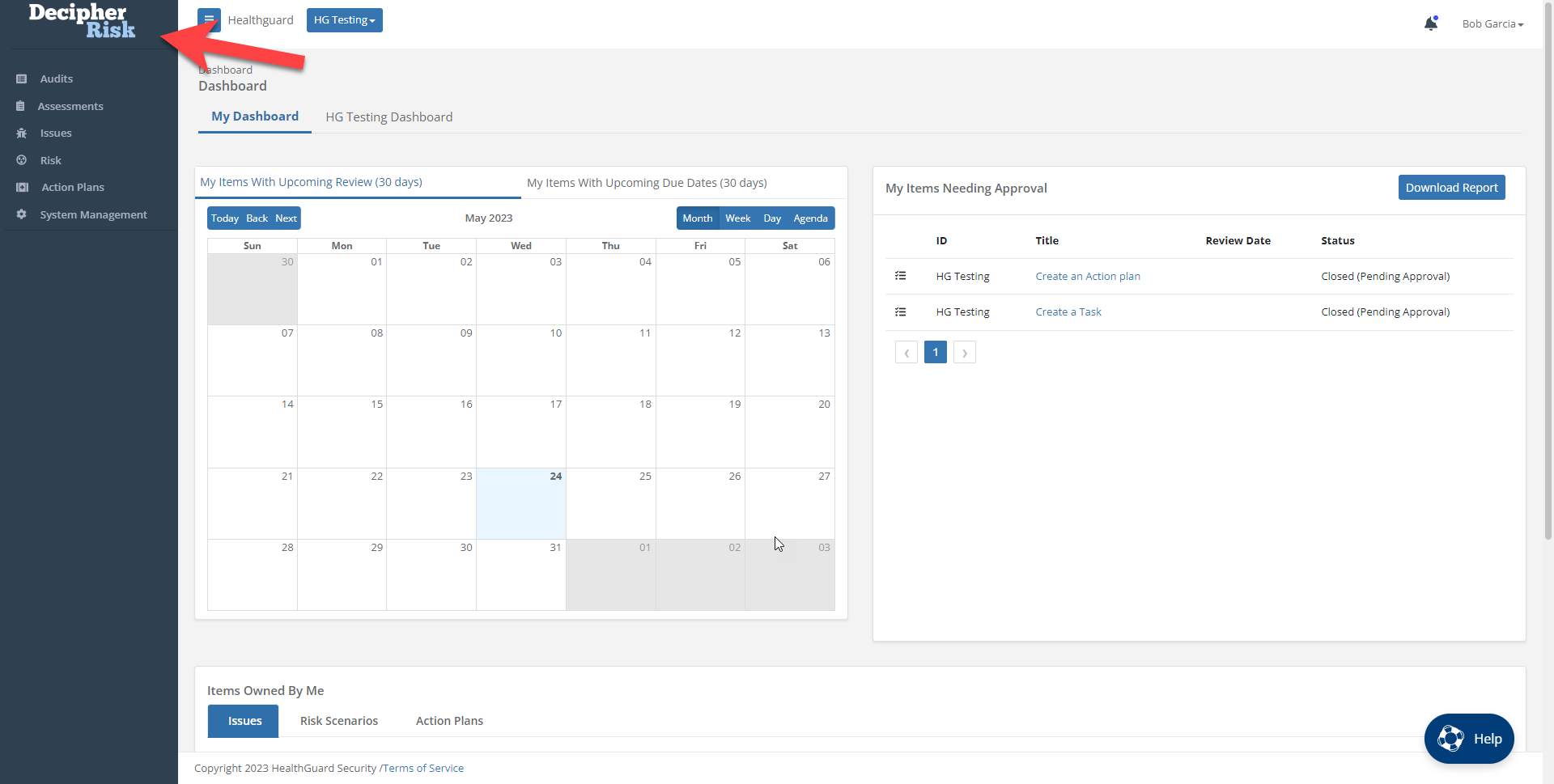
Figure 15 - Dashboard module with items assign to a user and group
Module Registers
Another way users can monitor and report on items is via the individual modules that include dashboards and registers, which provide a customizable way to sort, filter, search, and generate reports (CSV and DOCX) for records based on one more field (e.g., owner, due date, etc.). The register view can be customized by selecting and reordering the displayed columns.
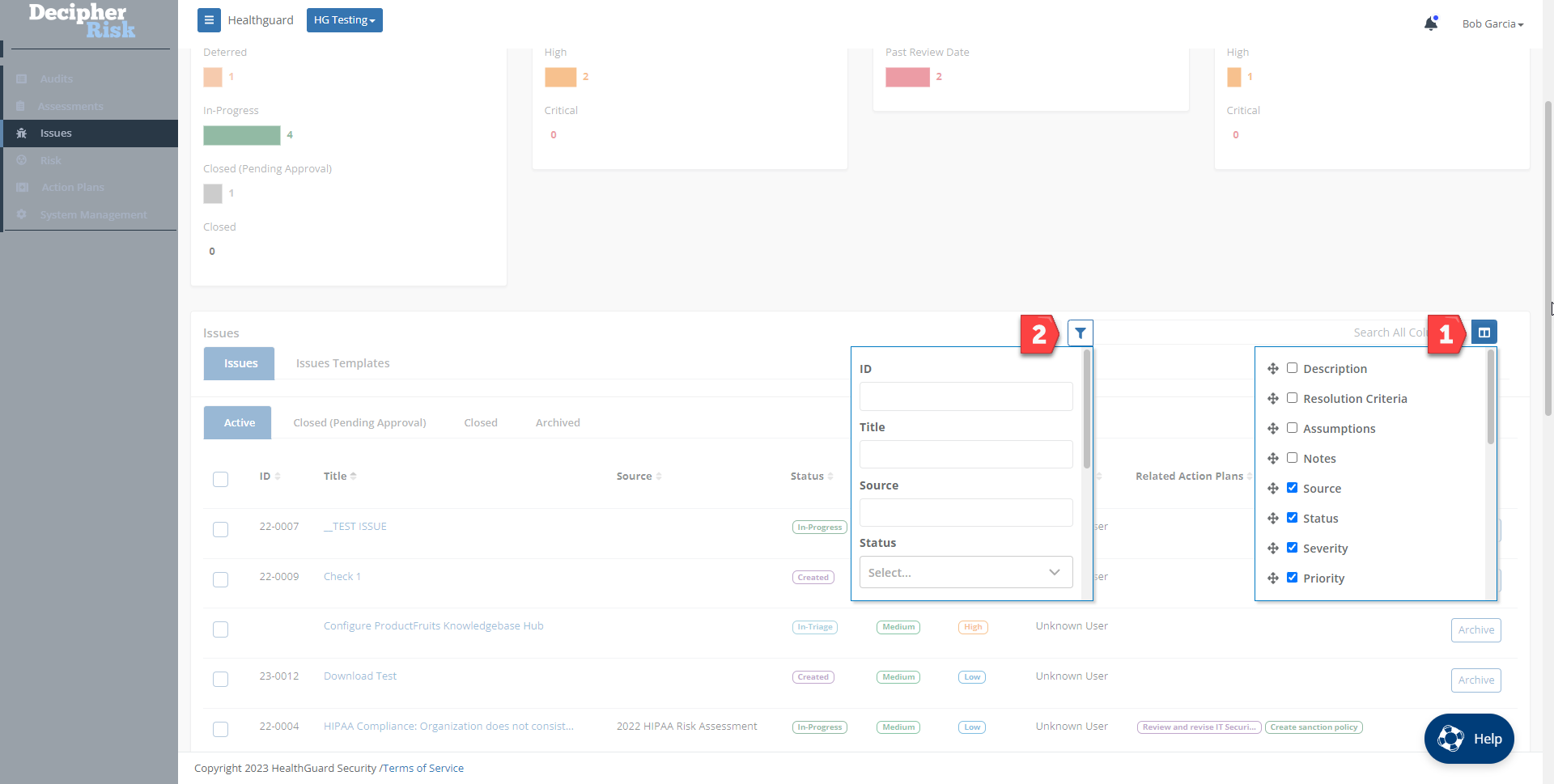
Figure 16 - Monitoring using the filter and search capability in the Issues Register
Monitoring and Reporting on Risk Management Process Performance
Monitoring and review aim to assure and improve the quality and effectiveness of process design, implementation, and outcomes. Ongoing monitoring and periodic review of the risk management process and its outcomes should be a planned part of the risk management process, with responsibilities clearly defined. (ISO, 2018)
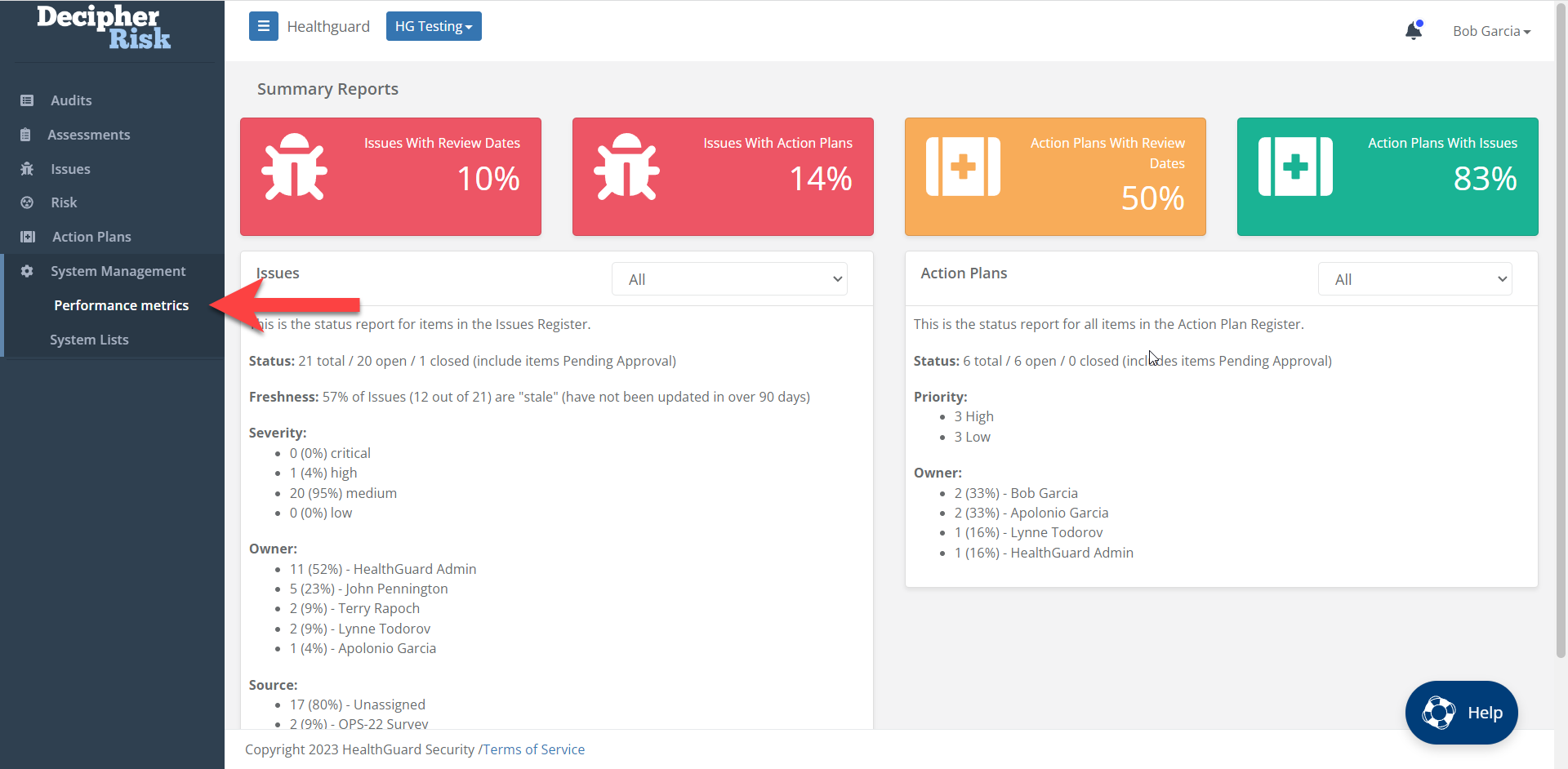
DecipherRisk™️ provides two ways for users to monitor risk management process performance: 1) the Performance Metrics Summary Report and 2) module-level dashboards.
Performance Metrics Summary Report
The Performance Metrics Summary Report provides a variety of metrics, Key Performance Indicators (KPIs), and statistics related to process performance. The left-hand column provides an Issue-centric set of metrics and statistics, while the right-hand column provides an Action Plan-centric set of metrics and statistics.
At the top of both sections are KPI graphics that are color coded as follows:
- Below 50% is red
- Below 90% is amber
- 90% or higher is green
Issue Metrics
The left-hand side of the Performance Metrics Summary Report provides metrics and statistics related to Issues.
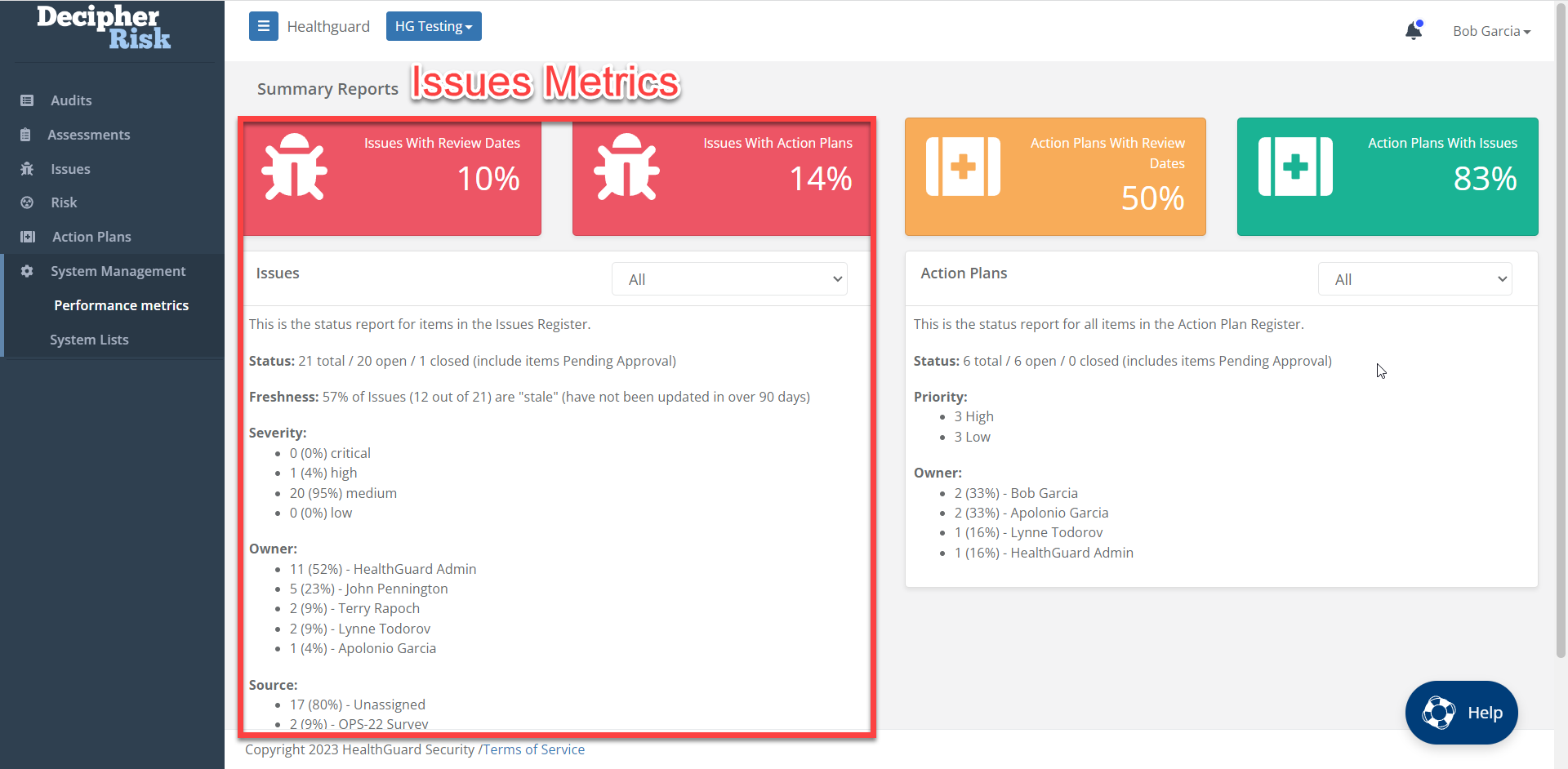
Figure 18 - Performance Metrics Summary Report metrics and statistics related to Issues.
Issue KPIs
- Issues with Review Dates - indicates the % of non-archived Issues with a Review Date set.
- Issues with Action Plans - indicates the % of Issues with an Action Plan.
Issues Register Statistics
Six categories of Issue metrics/statistics are reported on:
- Status - number of Issues total / open / closed
- Freshness - % (#) of Issues that are “stale” (have not been updated in over 90 days)
- Severity - % (#) of Issues by Severity (critical, high, medium, low)
- Owner - # (%) of Issues by Owner
- Source - # (%) of Issues by Source
- Review Date - % (#) of Issues that don’t have a review date
Issue Register Statistics Filter
The Issue statistics panel provides a way to filter Issue stats and metrics based on five different criteria.
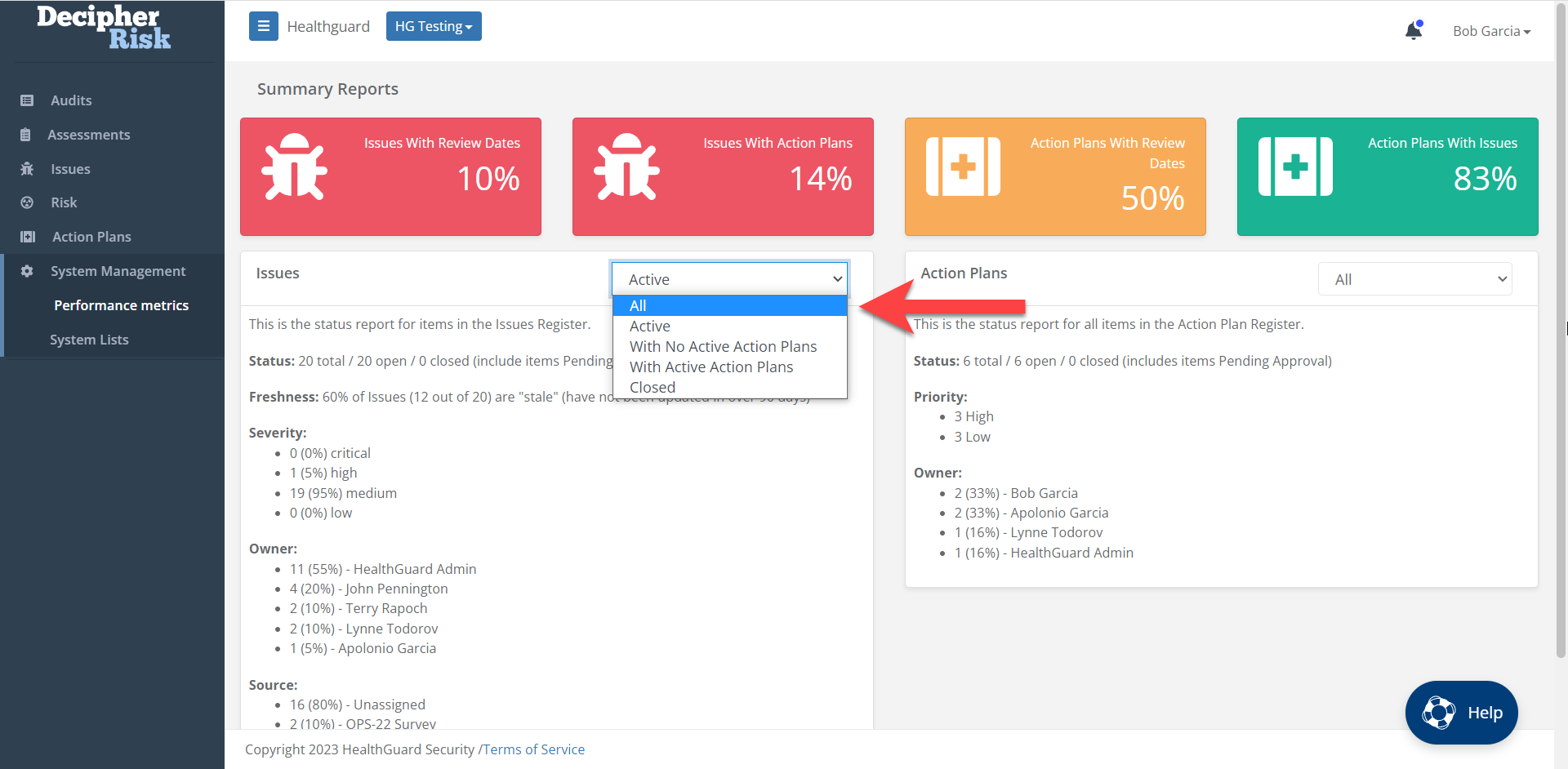
Figure 19 - Issue register statistics filter
- Active - stats for all active Issues. The count does not include Closed, Closed (Pending Approval), or Archive.
- With No Active Action Plans - stats for active Issues with no attached Action Plans.
- With Active Action Plans - stats for Issues In-Progress with attached Action Plans
- Closed - stats for Issues in the Closed and Closed (Pending Approval) status
- All - stats for all Issues
Action Plan Metrics
The right-hand side of the Performance Metrics Summary Report provides metrics and statistics related to Action Plans.
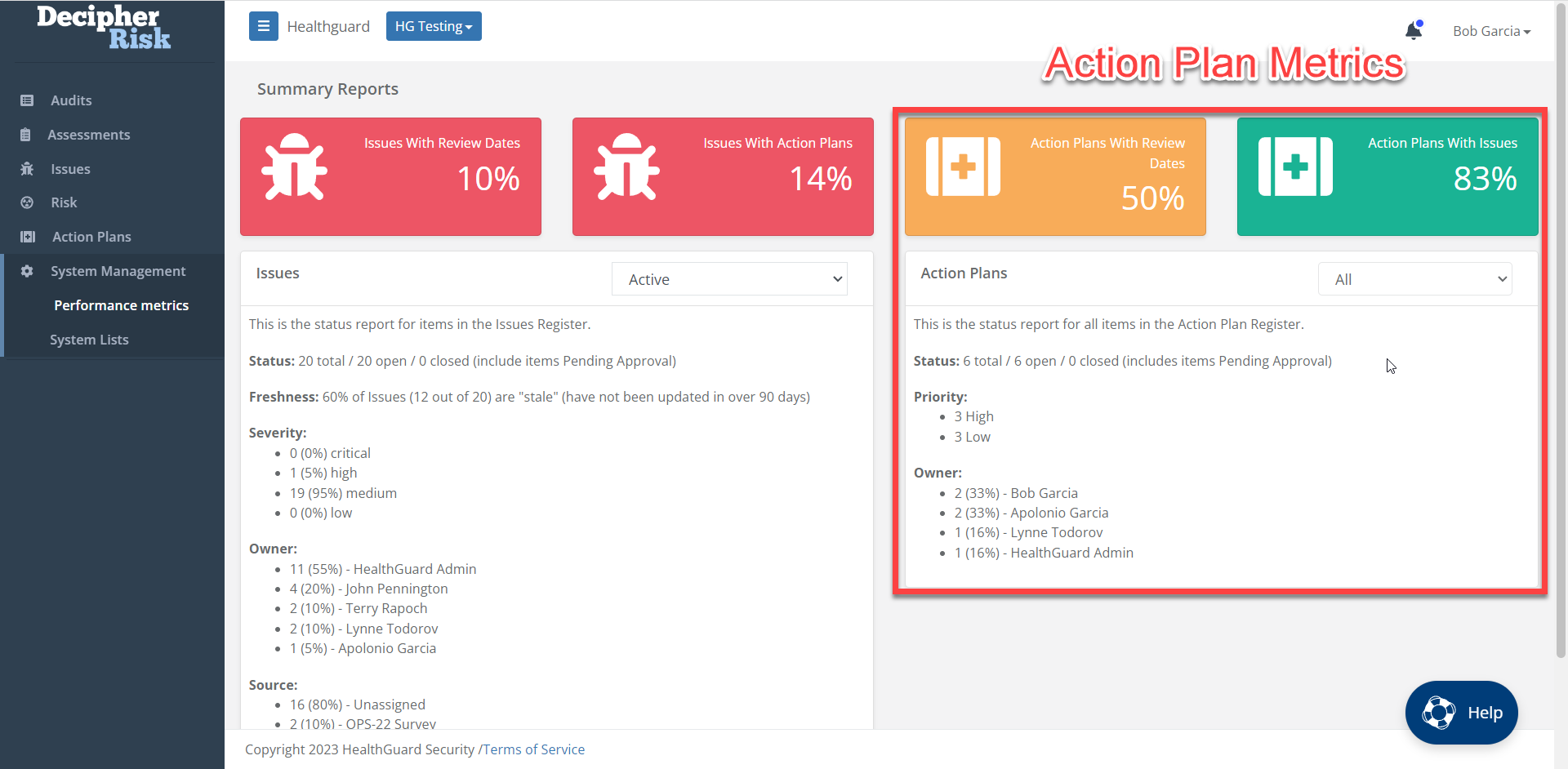
Figure 20 - Performance Metrics Summary Report metrics and statistics related to Action Plans.
Action Plan KPIs
- Action Plans with Review Dates - indicates the % of Action Plans that have a Review Date set. The goal is to set a review date for all issues (100%).
- Action Plans with Issues - indicates the % of Action Plans that have an Issue..
Action Plan Statistics
There are three categories of Action Plan metrics/statistics that are reported on:
- Status - number of Action Plans total / open / closed (including pending)
- Priority - # of Action Plans by Priority
- Owner - # (%) of Action Plans by Owner
Action Plan Statistics Filter
Like the Issues panel filter, The Action Plan statistics panel provides a way to filter Issue stats and metrics based on five different criteria.
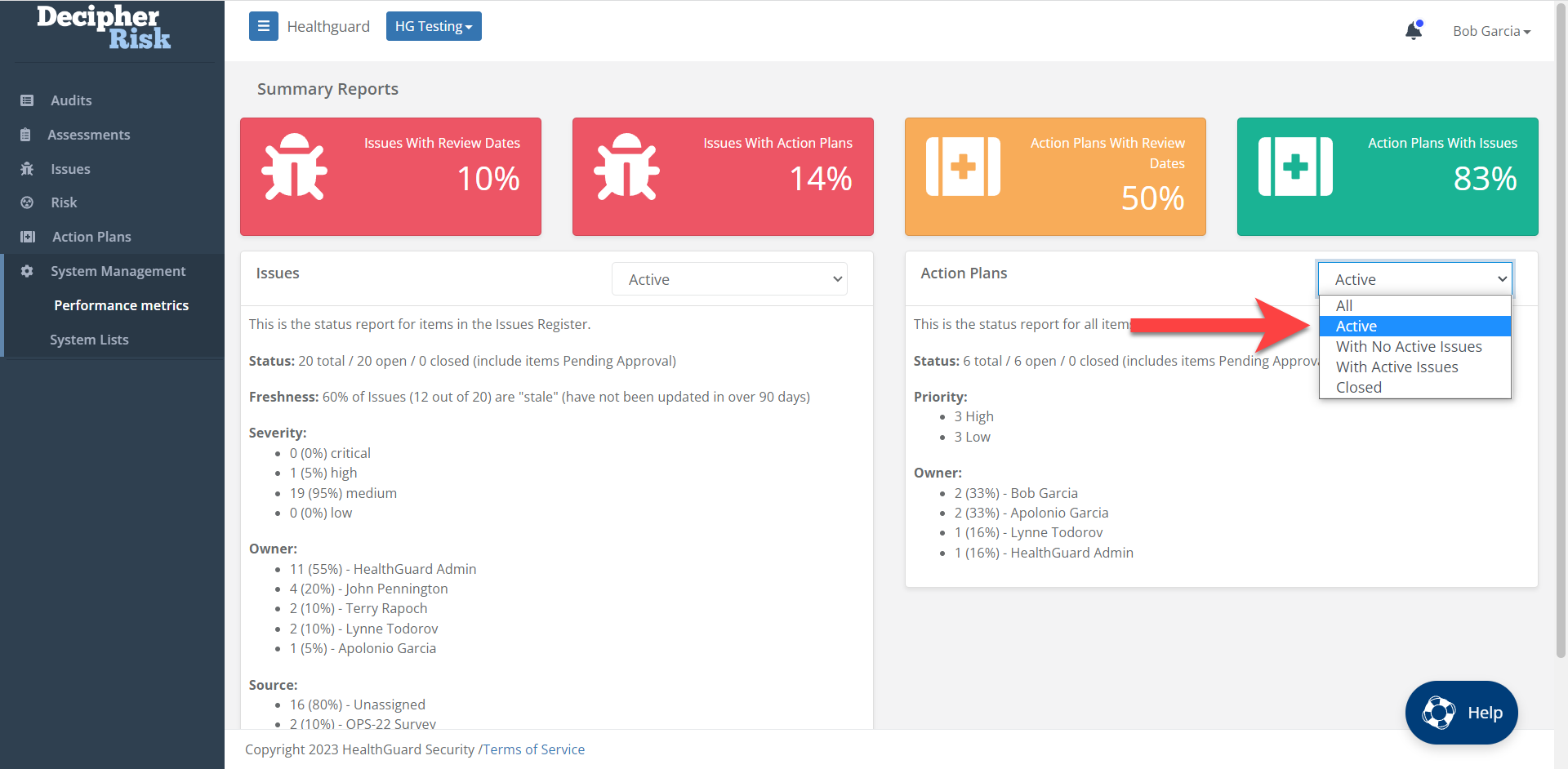
Figure 21 - Action Plan register statistics filter
- Active - stats for all active Action Plans
- With No Active Issues - stats for Action Plans with no attached Issues
- With Active Issues - stats for Action Plans with attached Issues
- Closed - stats for Action Plans in the Closed and Closed (Pending Approval) status
- All - stats for all Action Plans
Module Level Dashboards
The Issues, Risk, and Action Plan modules include dashboards that provide statistics and metrics for the records in their respective registers. All of the graphs are interactive and can filter items in their registers (e.g. in the Issues module, clicking on the Critical bar in the Priority card will filter on critical priority items in the register below).
Note: Relevant columns must be enabled in the register for dashboard filtering to work.
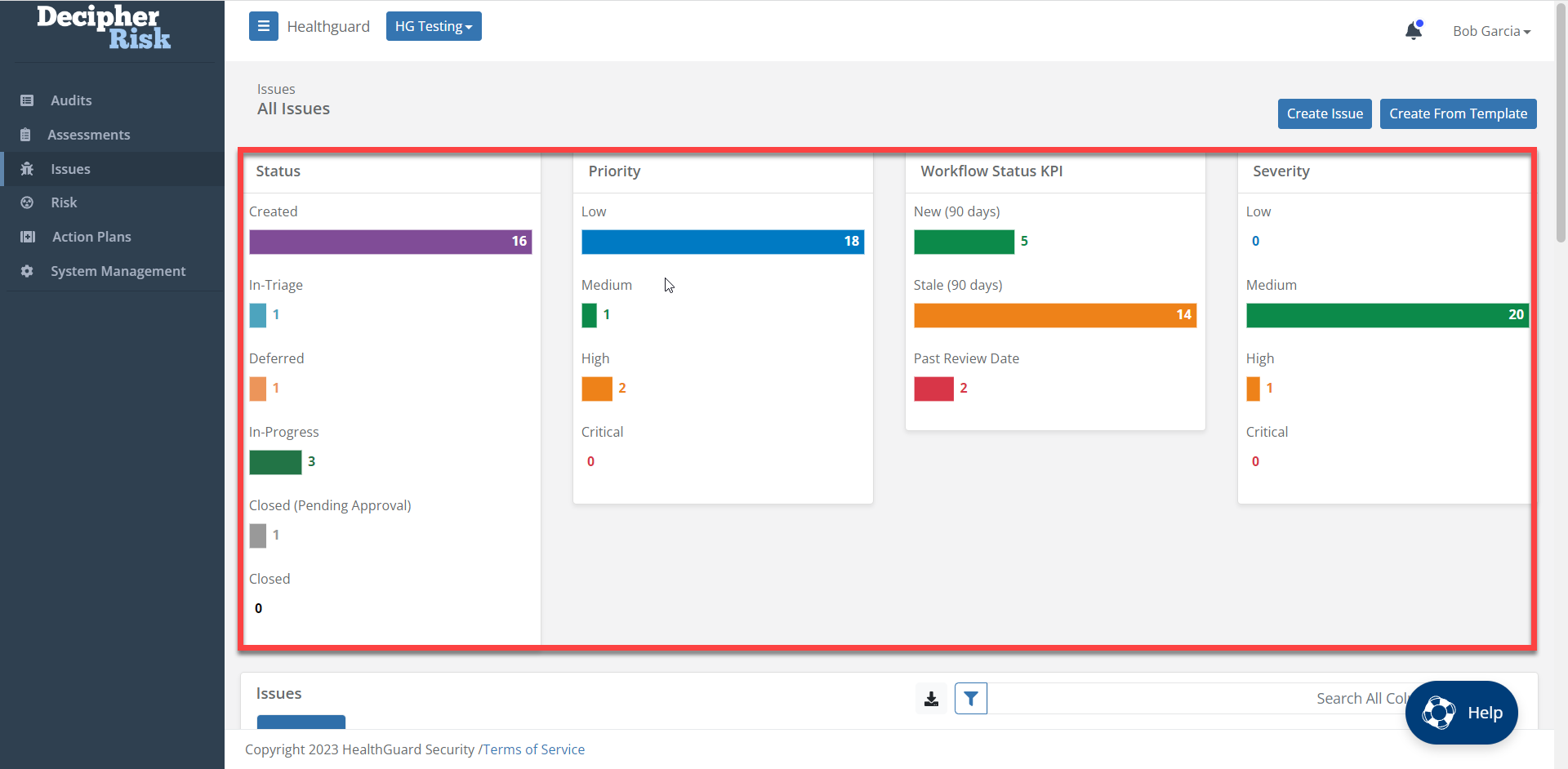
Figure 22 - Register Module Dashboard
The Issues module dashboard includes Workflow Status KPIs that allow users to monitor three important metrics related to the Issue status.
Workflow Status KPI
- New (90 days) - number of new Issues created in the past 90 days. If this number is zero or low, it could indicate a problem with the Intake process.
- Stale (90 days) - number of Active issues that have not been updated in 90 days. This may indicate a process performance issue.
- Past Review Date - number of Active issues that are past review.
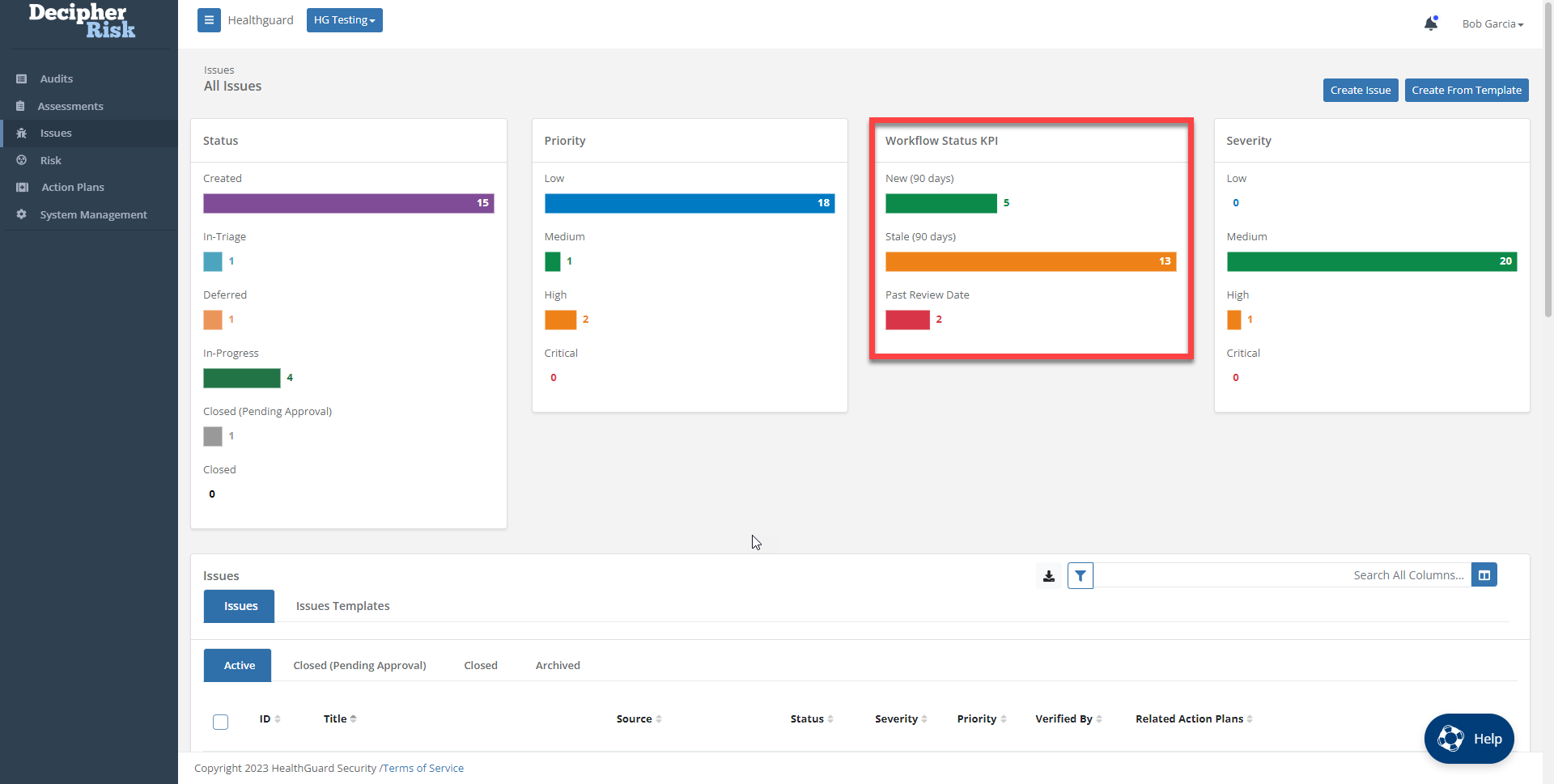
Figure 23 - Register Level Dashboard Workflow Status KPIs
Monitoring and Reporting on System Activity (System and Group Administrators)
System and Group Administrators can view a change log that can be used to sort, filter, search, and generate reports (CSV and DOCX) on all system activity related to Issues, Risk, and Action Plan modules.
This includes searching and filtering on date ranges, titles, users, and change types.
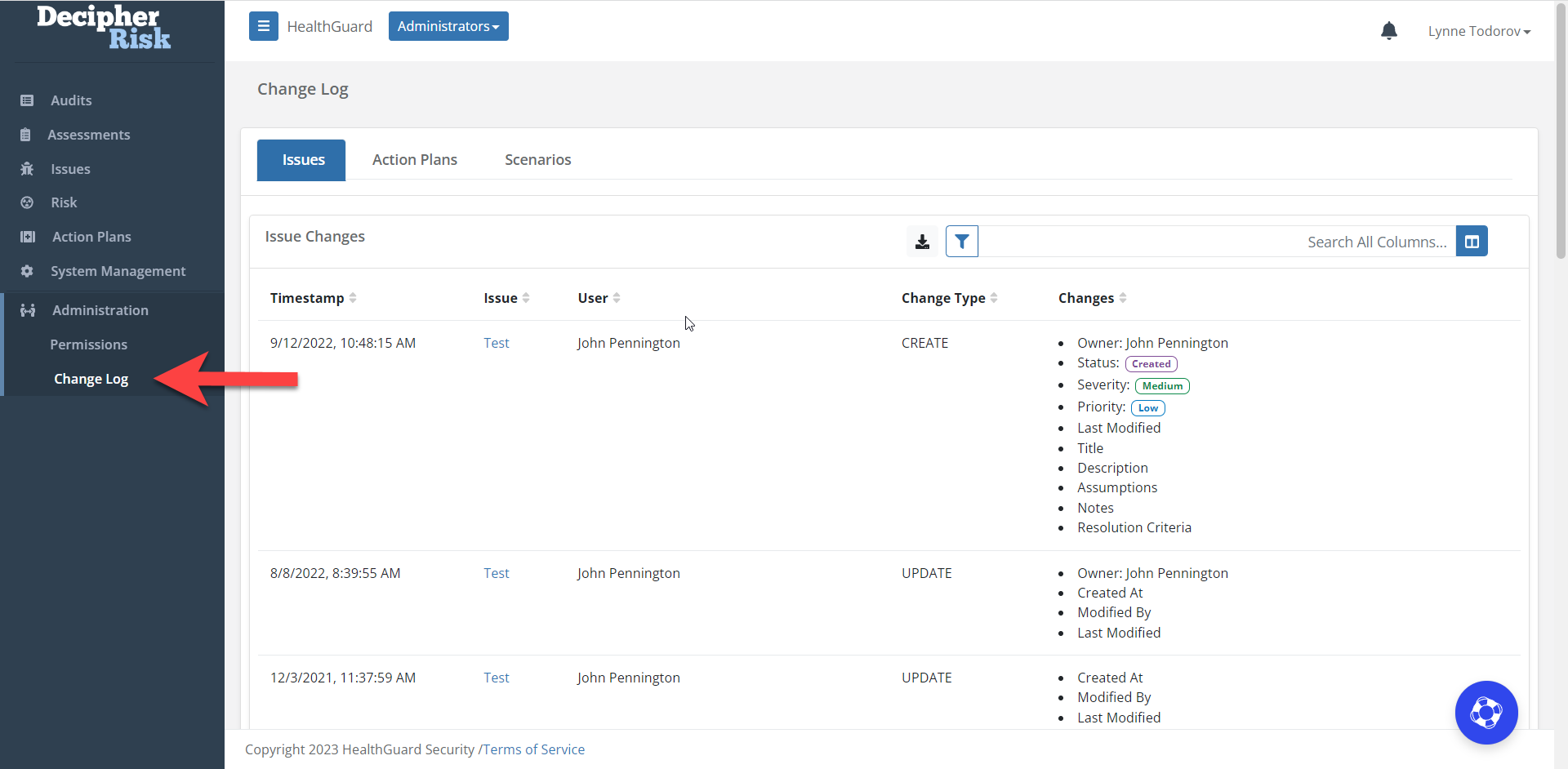
Figure 24 - System activity log with search, filtering, and export capabilities
Supporting Features
System Notifications
DecipherRisk provides in-application and email notifications for various activities, including the assignment of items, due dates, etc.
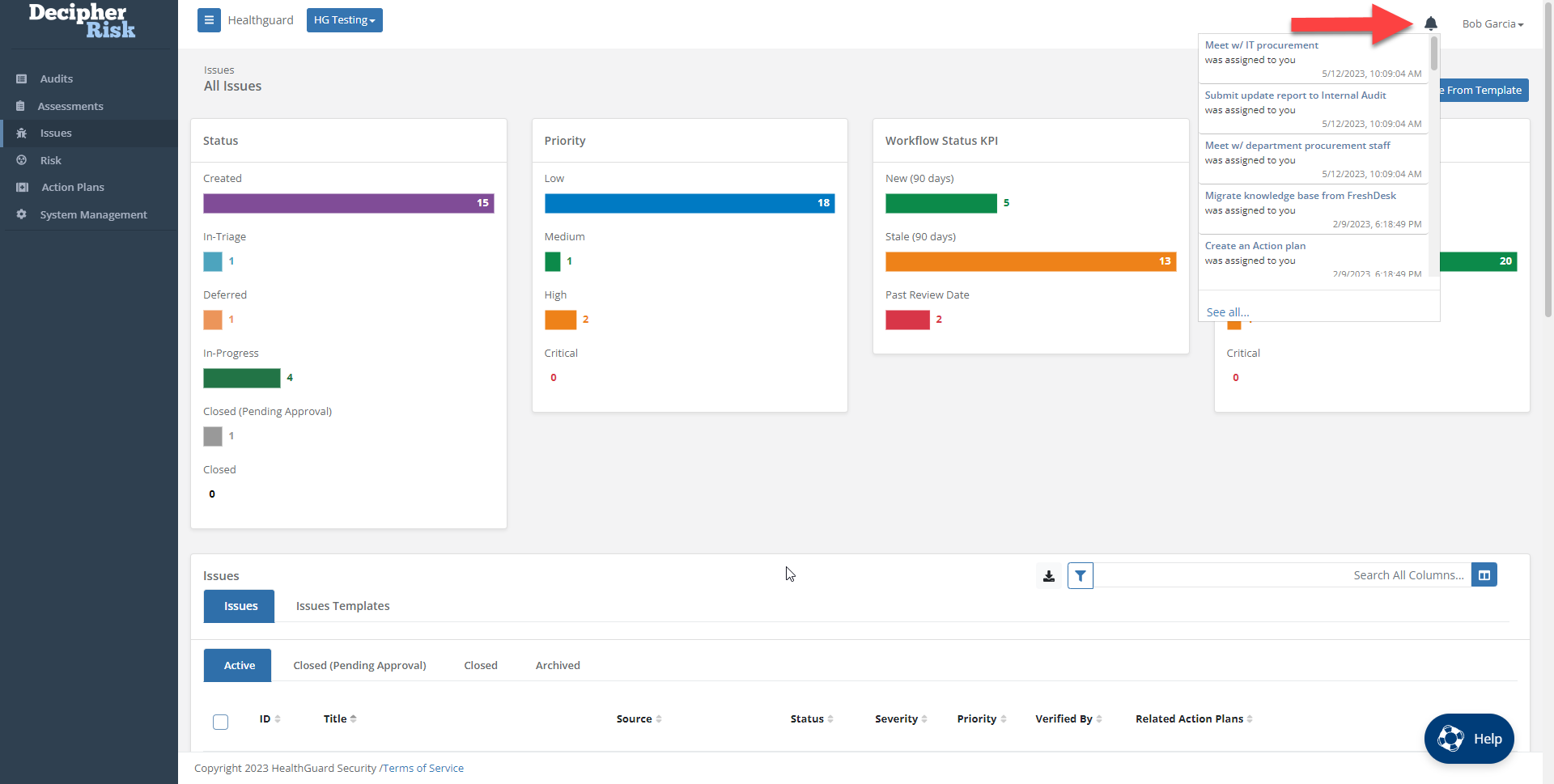
Figure 25 - In-Application Notification indicator with related notifications.
The system auto-generates email notifications for:
- Item assignment - sent to the item Owner
- Approval required - status changed to Closed (Pending Approval) - sent to the Group Administrator
- Due date reminder - Sent the day before an item is due - sent to the item Owner
- Weekly summary report - includes open Issues and Action Plans - sent to all Group members.

Figure 26 - System generated email notification for an Issue assigned to an owner